
What is 404 error? How to fix 404 errors?
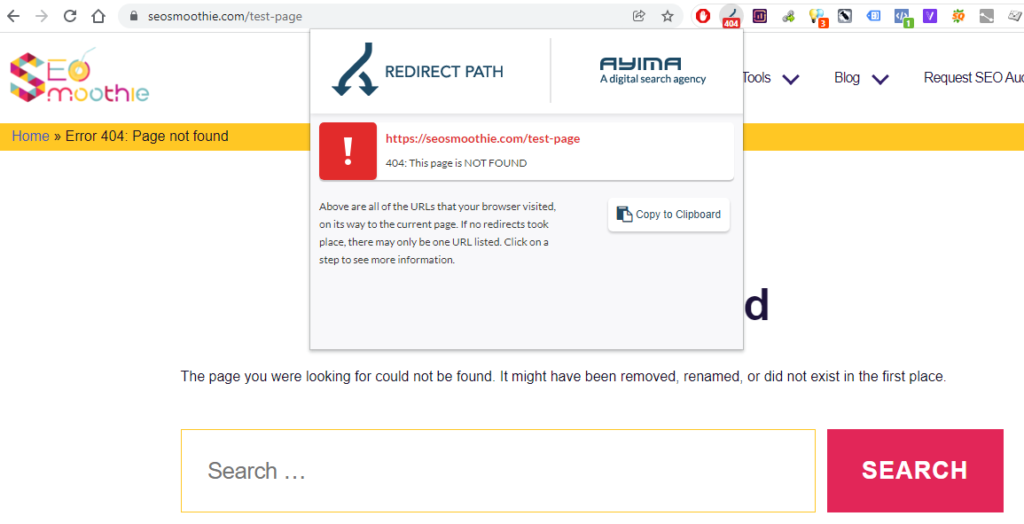
The HTTP 404 error, page not found or file not found error message is a standard server response code, which indicates that the browser was able to communicate with the server, but the server could not find what was requested. (additional information can be found in Wikipedia)
The easiest way to fix a 404 error is to redirect the page to another. You can do that by using a 301 redirect.
How Google Treats a 404 Page (and Why It Can Still Cause SEO Damage)
Even though a 404 page signals “Not Found,” Google still crawls and reads the content of that page. A 404 status tells Google not to index it, but it does not stop Google from parsing everything inside.
This is where hidden or hard‑to‑spot SEO issues often live.
What Google Still Reads on a 404 Page
Google may still process:
- Internal links
Google can follow them, pass crawl signals, and discover new URLs. - External links
These can leak PageRank or create unnatural outbound link patterns. - Structured data
Even though the page won’t be indexed, Google still parses the markup and may flag errors in Search Console. - JavaScript-rendered content
Googlebot may execute JS and see content you didn’t expect. - Canonical tags
If a 404 page has a canonical pointing somewhere else, Google may treat it as a signal—even if it’s wrong. - Meta robots tags
Google still reads them, even though the 404 status overrides indexing.
Why 404 Pages Are a Common Source of Hidden SEO Errors
404 pages often accumulate unnoticed problems because:
1. They’re not part of the main site structure
Developers rarely check them, so broken links or outdated templates stay hidden.
2. CMS templates sometimes inject unexpected elements
Menus, footers, widgets, or plugins may add links or schema you didn’t intend.
3. Internal links pointing to 404s create crawl waste
Google wastes crawl budget on dead ends.
4. Structured data errors on 404 pages pollute Search Console
You may see warnings for schema that shouldn’t exist on a non-indexable page.
5. Outbound links on 404 pages can look spammy
If a hacked template injects links, they often appear on 404 pages first.
Example: Why This Matters
Imagine a 404 page that contains:
- Breadcrumb schema
- Product schema
- Internal links to old categories
- A canonical tag pointing to the homepage
- A footer with 50 external links
Even though the page returns 404, Google still:
- Reads the schema → flags errors
- Follows the links → wastes crawl budget
- Sees the canonical → may treat it as a weak signal
- Detects the external links → may suspect spam or hacking
This is why 404 pages are a hotspot for hidden SEO issues.
How to Audit 404 Pages Properly
Here’s a practical checklist:
1. Crawl your site and extract all 404 URLs
Use Screaming Frog, Sitebulb, or Ahrefs.
2. Inspect the HTML of the 404 template
Look for:
- Schema markup
- Canonical tags
- Meta robots
- Internal/external links
- JS-injected content
3. Ensure the 404 page is lightweight
It should contain:
- A simple message
- A link back to the homepage
- No schema
- No canonical
- No indexable content
4. Check Search Console for structured data errors
Many come from 404 templates.
5. Make sure the server returns real 404 status, not soft 404
Soft 404s confuse Google and waste crawl budget.
Conclusion
A 404 status prevents indexing, but it does NOT prevent Google from reading, parsing, and following everything inside the page.
That’s why 404 pages are one of the most common places where:
- hidden SEO errors
- template bugs
- hacked links
- structured data issues
…silently accumulate.
You might be interested in:
HTTP 404, 404 not found FAQ
What is 404 error?
A 404 not found error is an HTTP status code that means that the page you wanted to access a website couldn’t be found on their server.
How to fix 404 error?
The simplest and easiest way to fix your 404 error code is to redirect the page to another. You can accomplish this task by using a 301 redirect. Also, as a best practice, it is recommended that you replace all old inbound links with the new one.